
Setup & Support
Get from a fresh install to a live cue display in a few minutes. If you hit a snag, jump to Troubleshooting.
1 Requirements
- A grandMA3 console or OnPC software.
- An iPhone or iPad running iOS 17 or later.
- An optional Apple Watch running watchOS 10 or later (Series 4, SE, or Ultra).
- Both devices on the same Wi-Fi or wired network. A closed show LAN is recommended.
The protocol is unencrypted and unauthenticated by design — it expects to run on a network you control.
2 Install the console plugin
The download is a small zip bundle containing the CueView plugin and two ready-made macros — Start CueView Server and Disconnect CueView Server.
Read-only by design. The plugin only observes your show — it never sends commands, edits cues, or modifies any data on the console.
Download plugin package (.zip)Import into your console
- Extract
CueView_MA3.zipand copy the contents ofplugins/andmacros/to the matching folders in yourgma3_library. - Import the cue_view plugin.
- Import the start cue_view server and disconnect cue_view server macros.
You'll now have one new plugin and two new macros in your show.
Optional: edit the start cue_view server macro and replace the * with a specific IP address to pin CueView to a single network interface — useful if your console is on multiple networks.
Tap Start
Run the Start CueView Server macro. The console's command line should print:
CueView for grandMA3The server is now running and waiting for the iOS app. To stop it, run Disconnect CueView Server. Both macros are safe to assign to executor buttons or chain into other macros (for example, an Showtime macro that brings up several things at once).
3 Install the iOS app
The app is on the App Store.
$12.99 — one-off purchase. The console plugin is free; the price covers the iOS app only.
4 Connect iOS App to Console
- Open the app and tap the Settings icon.
- Enter the IP address the Plugin is bound to, plus the port (default
8002). With the default*binding, use any of the console's IPv4 addresses from Menu → Network that's on the same network as your iPhone or iPad. If you pinned a specific IP in the Start macro, enter that exact one here. - Tap Connect.
- The first time you connect, iOS asks for Local Network permission. Allow it.
The status indicator at the top of the screen tells you the link state:
- Green — live. Receiving updates from the console.
- Amber — reconnecting. The app is retrying with backoff.
- Red — disconnected. Check Wi-Fi, the IP, and that the plugin is still running on the console.
5 Using the app
Live cue display
Three big rows — previous / current / next — with the current cue's fade and delay times underneath and a progress bar for the transition. A pulsing dot at the top shows the live link to the console, next to the sequence name.
Cue history
Swipe up on the live display (or tap the list icon top-left) to see every cue fired this session, with the live cue pinned at the bottom. History clears on every reconnect — see Troubleshooting for why.
6 Customising the display
The Settings sheet is context-aware — it shows controls relevant to whichever view you opened it from. Open Settings from the live display and you'll see tweaks for that view; open it from the history list and you'll see history-view tweaks instead. Global settings appear in both contexts.
- Appearance (always shown) — font choice (System / Rounded / Serif / Monospaced), current and previous-cue colours, and independent toggles for the numeric fade/delay text and the progress bar.
- Live cue display (when opened from the main screen) — vertical spacing between rows, show / hide the current and adjacent cue names, and independent number and name size sliders for the current and adjacent rows.
- History view (when opened from the history screen) — overall text size scale, plus show / hide the "X seconds ago" elapsed-time label.
- Stored cue history — clear the history for the current sequence, or wipe all sessions at once.
- Debug — optional log strip at the bottom of the live view, plus a clear-log button. Handy while verifying the link; turn it off for the show.
Each section has its own reset button that restores that section's defaults without touching the others. All preferences are stored on-device and restored next time you open the app.
7 Apple Watch
If you have an Apple Watch paired with your iPhone, the cue display follows you to your wrist. Installation is automatic — there is nothing to configure on the watch itself.
- Install CueView from the App Store on the iPhone.
- Open the Watch app on the iPhone → My Watch tab → scroll down to CueView.
- Tap Install. (Depending on your settings the watch app may have auto-installed already.)
The watch displays cue state forwarded from the iPhone over Bluetooth — so the iPhone needs to be powered on and running CueView for the watch to receive updates.
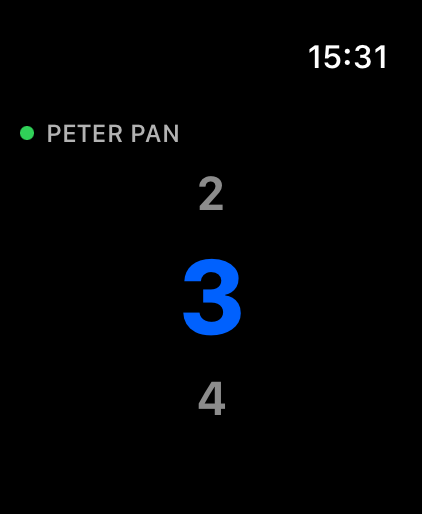
The watch shows a small status dot and the current sequence name at the top, then the same three-row cue display you see on the iPhone — previous, current, and next — in the colours and font you chose in the iPhone Settings. Always-on aware: the current cue stays readable when the watch dims.
8 Troubleshooting
- "Stuck on Reconnecting"
- Check that both devices are on the same network, that the IP and port match what's running on the console, and that the Start CueView Server macro has been run since the last console reboot.
- Start macro reports "Illegal Object" on the command line
- The plugin was not imported, imported to a different datapool, or has been renamed. Import the Plugin, or specify the correct datapool in the MacroLine.
- Start macro fails with "bind failed: address in use" message in the System Monitor
- Something is already using the chosen port on the console. If this is a previous run of CueView that didn't shut down cleanly, run the Disconnect CueView Server macro first, then Start again. If that doesn't clear it, change the port in both the Start macro and the iOS app's Settings.
- Local Network permission prompt was denied
- iOS requires Local Network access for the app to reach your console. If you accidentally tapped "Don't allow," re-enable it under iOS Settings → CueView → Local Network.
- Connected, but no cues are showing
- The console has no sequence selected in the user where the plugin is running. Select a sequence and run a cue — the display will populate.
- "Why did my history just clear?"
- History is wiped on every reconnect — network drop, app launch, sequence change. The app doesn't know which cues fired while it was offline, so the safe choice is to start fresh rather than show a stale list.
- The screen sleeps during a show
- The app disables the idle timer while connected, so it won't sleep on its own. It will, however, respect a manual Side-button lock — leave the device unlocked during the show. If your iPad is set to auto-lock aggressively in iOS Settings and you're not unlocking it often, consider increasing or disabling auto-lock.
- My watch stopped updating mid-show
- The watch receives updates from the paired iPhone over Bluetooth. Most likely cause is the iPhone going to sleep, the CueView app being force-quit, or the watch and phone falling out of Bluetooth range. Wake the iPhone, make sure CueView is running, and the watch will catch up within a second.
- Can I use the watch without the iPhone?
- No. The watch is a display for the iPhone's connection to the console — it doesn't open its own. This is intentional: Apple Watch Wi-Fi can't reliably join custom show networks. If the iPhone is off, the watch shows whatever cue it knew about last.
9 Still need help?
- contact@mattpeel.com — general support.
- Report a bug — please include what you were doing, what you expected, and what happened (a screenshot of the debug log helps).